1Password Integration Guide
Connect KeyRunner to 1Password to securely access your secrets, credentials, and API keys.
Choose Your Connection Method
Option 1: Desktop App Integration (Recommended)
Option 2: Service Account Token
Option 1: Desktop App Integration
Prerequisites
Install 1Password CLI
macOS:
bashbrew install --cask 1password-cliWindows: Download from https://1password.com/downloads/command-line/
Linux: Download from https://1password.com/downloads/command-line/
Enable CLI Integration in 1Password Desktop App
- Open 1Password desktop app
- Go to Settings → Developer
- Enable "Integrate with 1Password CLI"
- Keep the 1Password app running
Configuration
IN KeyRunner UI Fill in the vault configuration form:
| Field | Value |
|---|---|
| Vault Identifier | Choose a unique name (e.g., local, dev-vault) |
| Service Account Token | Leave empty |
| Connect Server URL | 1password url |
| Vault Name (Optional) | Leave empty to access all vaults, or specify: "Employee" or "Employee, Personal" |
Example:
Vault Identifier: local
Service Account Token: (empty)
Connect Server URL: https://example.1password.com
Vault Name: (empty or specify vault names)
Click Connect.
Option 2: Service Account Token
Prerequisites
Create Service Account Token
- Go to https://start.1password.com/integrations/
- Create a Service Account
- Generate a token (starts with
ops_) - Copy the token securely
- Grant the service account access to required vaults
Have 1Password Connect Server URL (if using Connect server)
- Example:
http://localhost:8080or your server URL
- Example:
Configuration
Fill in the Keyrunner UI vault configuration form:
| Field | Value |
|---|---|
| Vault Identifier | Choose a unique name (e.g., prod, staging) |
| Service Account Token | Paste your token (starts with ops_) |
| Connect Server URL | Your Connect server URL (or leave empty if using 1Password.com) |
| Vault Name (Optional) | Leave empty to access all vaults, or specify: "Production" or "Prod, Staging" |
Example:
Vault Identifier: prod
Service Account Token: ops_eyJzaWduSW5...
Connect Server URL: http://localhost:8080
Vault Name: (empty or specify vault names)
3. Connect and Use Secrets
Once the details are entered, click on Connect.
Upon successful connection, you can view the secrets and use them globally, just like environment variables.
When you start typing with { anywhere in the input field, secrets will show up with the following notation:
OV for HashiCorp Vault
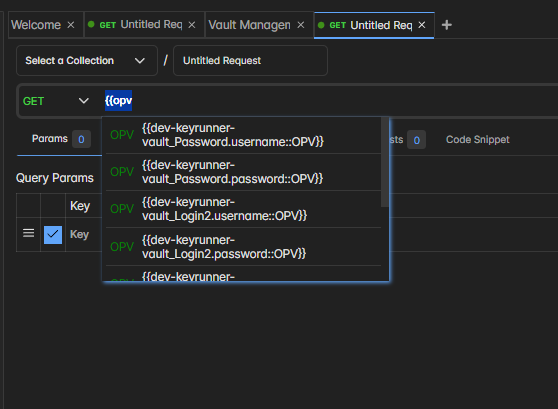
R for random variables
E for environment variables
Note: All the secrets are session variables and are not stored anywhere.

4. Additional Information
5. Future Methods
- If you want any other Auth methods, please let us know, and we will incorporate them in future releases.
6. Disconnect
- If you wish to disconnect, click on Disconnect. This will clear the cached secrets and delete the vault configuration file from your machine.