KeyRunner Flows: Simplifying API Flow Creation and Visualization
Creating a Flow
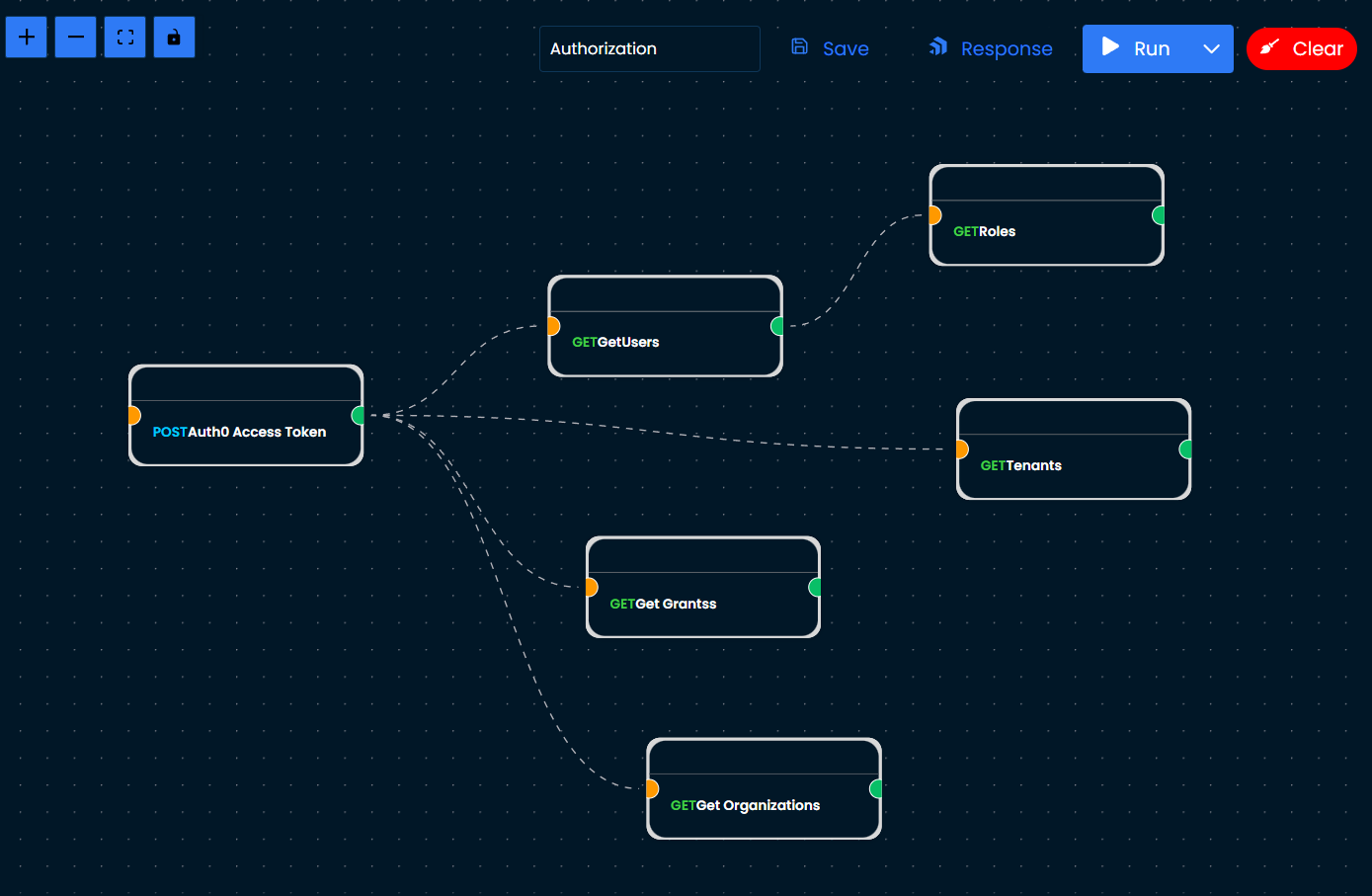
The KeyRunner Flows feature streamlines API workflow creation through a drag-and-drop interface. Users effortlessly organize their collections of requests onto the flow canvas:
Drag-and-Drop Interface: Easily place requests from collections onto the flow screen.
Canvas Organization: Arrange and connect requests visually for a clear representation.
Chaining Requests for Visualization
Chaining requests in KeyRunner Flows visually displays the API flow, showcasing how data moves between endpoints:
- Visual Flow Design: Connect requests visually on the canvas to understand API call sequences.
- Real-Time Response Viewing: Running the flow displays real-time responses.
Getting parameters inside Nodes (Headers,parameters,Path variables)
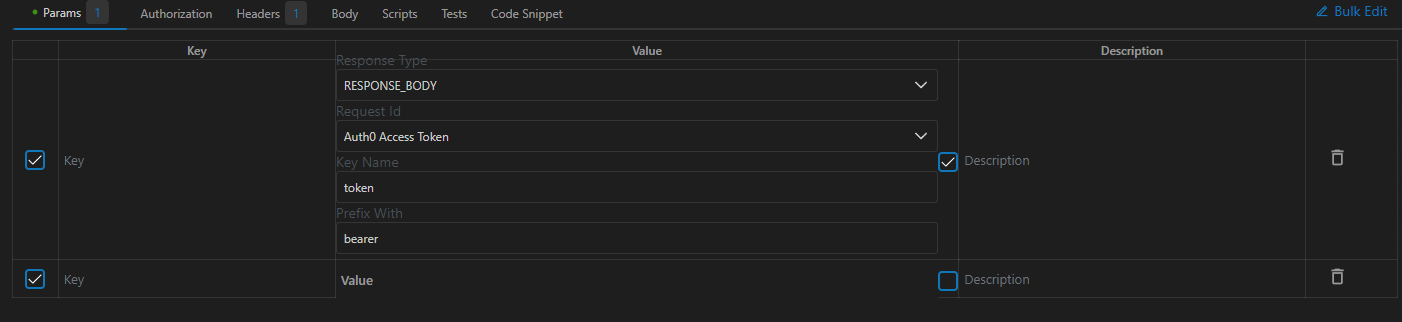
Once requests are chained data from connected nodes can be fetched to be reused in the current node by checking the box and selecting the ResponseType,RequestID,KeyName & Prefix with values.
- Scenario 1: In the below scenario token is being fetched from response body of connected node
To fetch data from response body array the notation is.
[2].id- Scenario 2: To use data from connected nodes in request body '[[' will suggest the nodes that are connected and ".keyName" will fetch the required data.Data can be fetched from response body or response headers
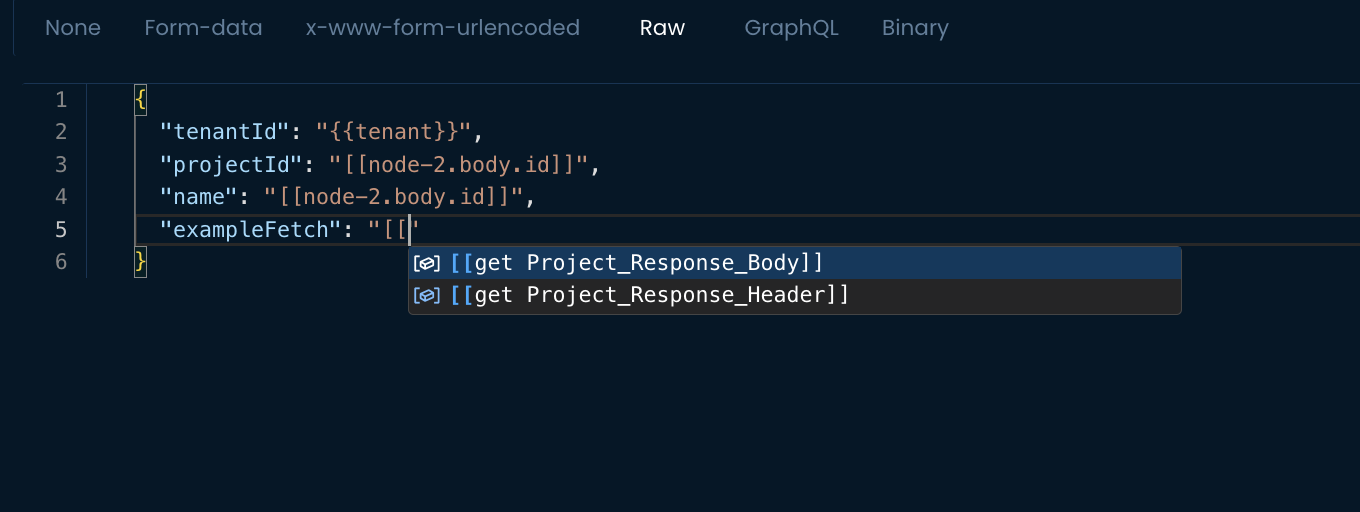
Usage :
[[node-1.body.token]]Editing a Flow
Editing a flow involves seamless modifications by interacting directly with nodes:
- Node Interaction: Click on nodes to edit request data, enabling modifications without coding.
- Utilizing Previous Request Values: Easily access and utilize values from previous chained requests within the flow.
Response Visualization
KeyRunner Flows visually represent the status of requests through color-coded responses and a response tab on flow screen: 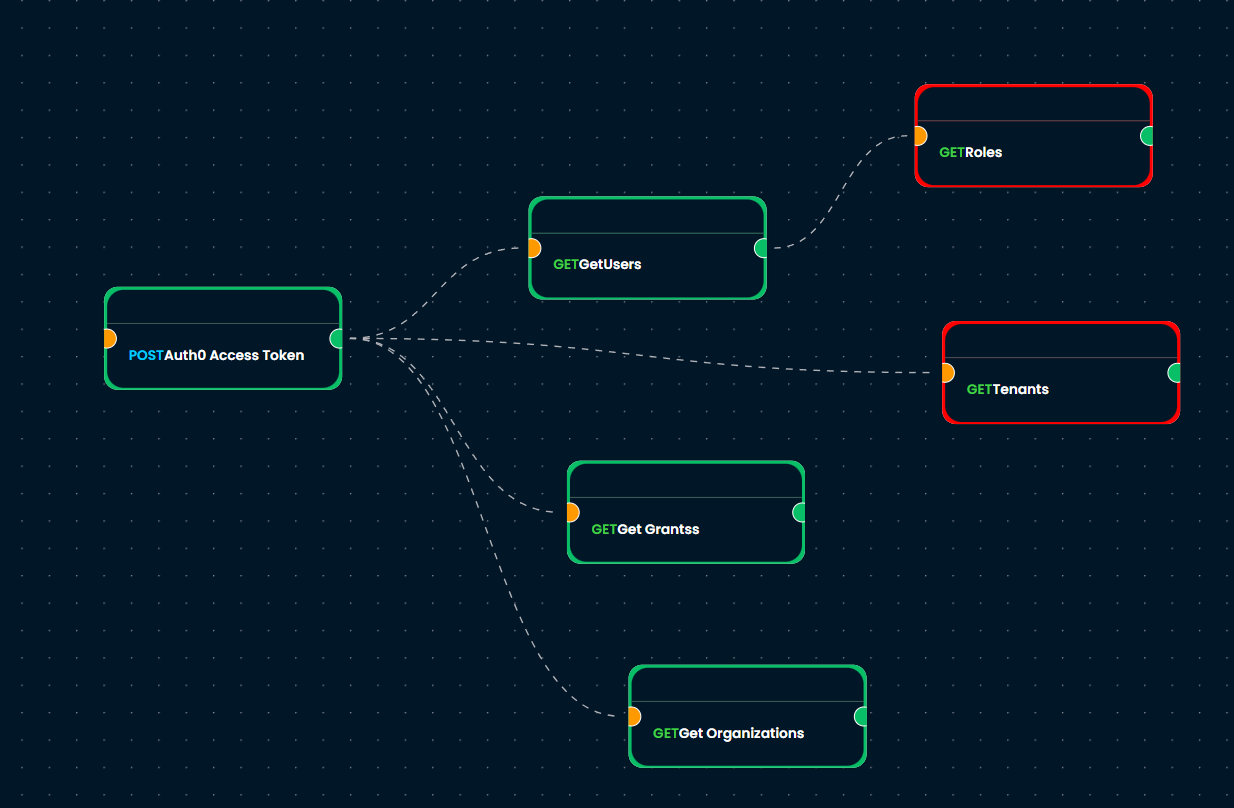
- Orange - In Progress: Indicates requests that are currently processing.
- Green - Success: Depicts successful request execution.
- Red - Error: Highlights nodes where errors occurred in the flow.